Page flip effects

Page flip effects for your PDF

Give readers a magazine to browse, not just a PDF to scroll through. FlowPaper turns your PDF into an online flipbook with a choice of page turn effects, from a simple flip to a realistic 3D page curl.

Create a flipbook Explore page flip styles
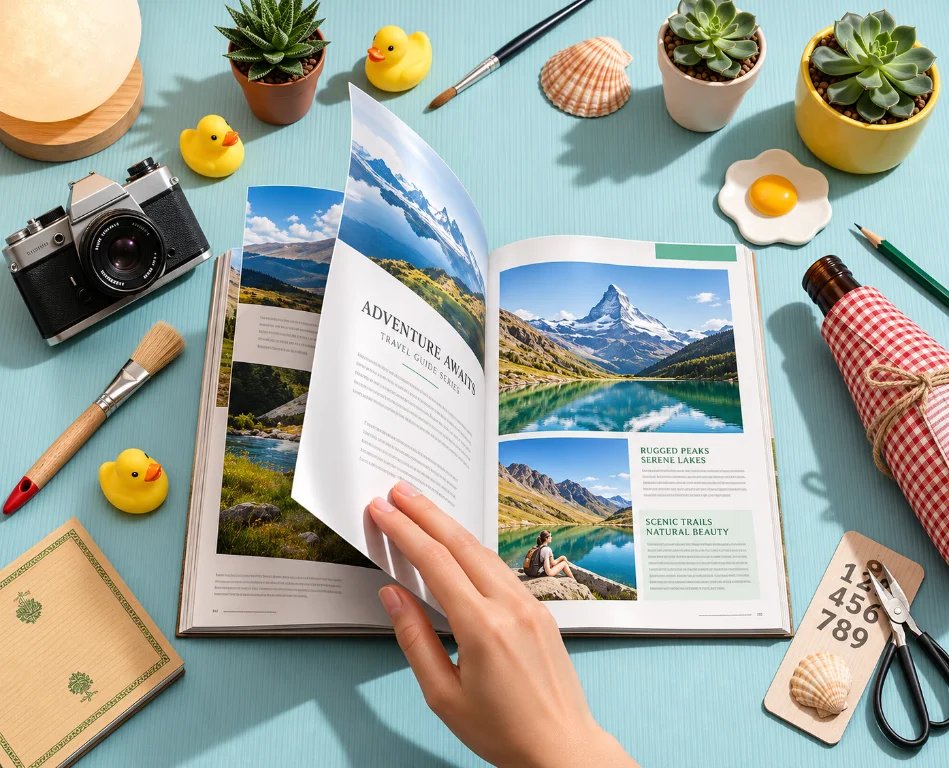
A hand turning a page of an illustrated travel magazine

Choose your page turn effect

Some publications look best with a realistic page turn. Others need a simpler transition or room for animated text and images. Compare the styles below and open an example to see each one in action.

Realistic 3D flip

Pages curve as they turn, giving your digital magazine or catalog the look of a printed one. The Zine 3D effect works on mobile devices too; devices that cannot display it use an alternative page turn.

Choose this style for a lifelike flip. If you also want text and image animations, use Elements instead.

Try the 3D flip example →

Classic flip

Prefer a simpler page flip? The classic Zine style lets readers drag page corners and zoom in. It's a lightweight option, though the turn looks less like a real sheet of paper than the 3D version.

Try the classic flip example →

Flip with animated content

With the Elements template, text and images can animate as a reader opens each page. Try it for a brochure or presentation where you want to draw attention to particular details.

The page flip is flatter than the Zine 3D effect, but you can combine it with those content animations.

Try the animated presentation →

Top-to-bottom flip

Turn pages from top to bottom rather than side to side. Called Horizontal Flip in the Elements template, this style works well for landscape brochures and presentations.

Try the top-to-bottom flip →
A closer look should still be clear

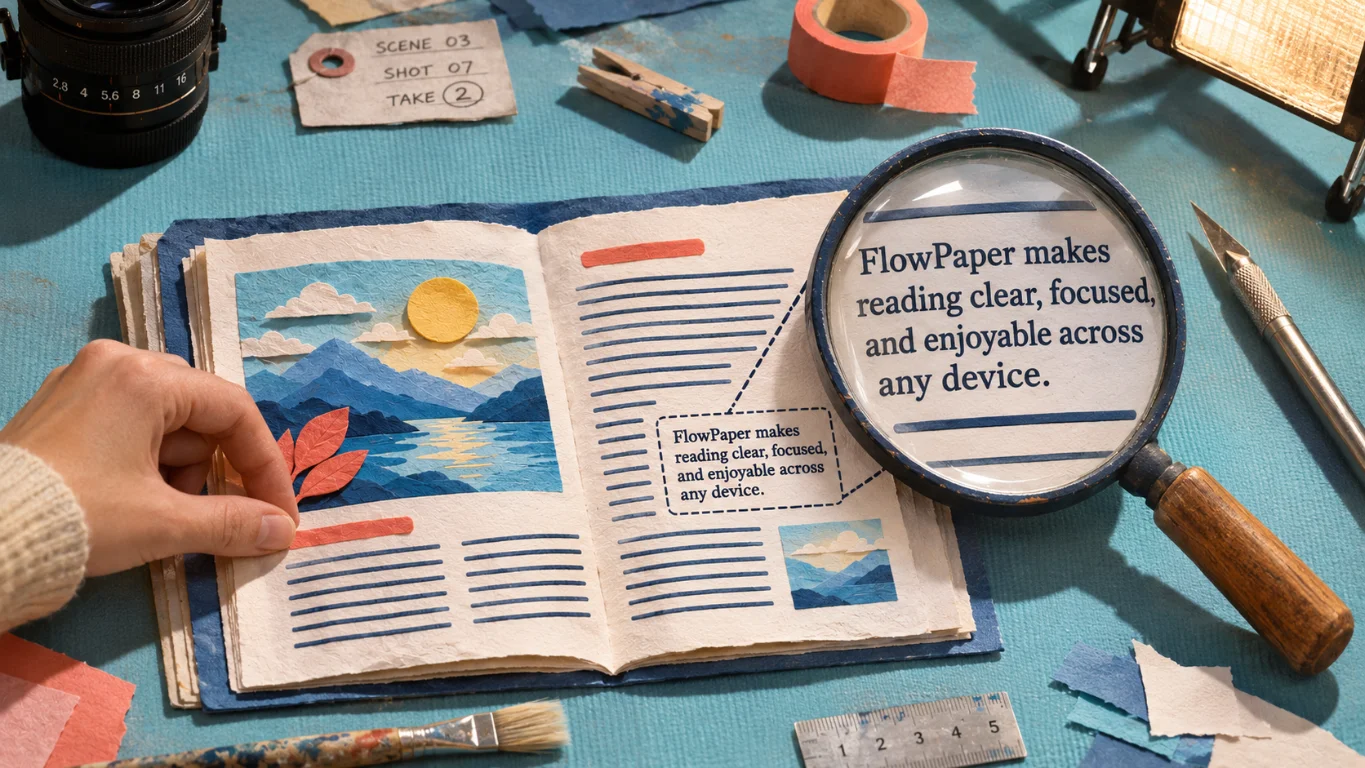
A page turn might catch someone's eye, but they still need to read the small print. FlowPaper keeps PDF text and vector artwork sharp when readers zoom in on captions, product details or charts.

The page keeps its overall design at different zoom levels. Photos and other images depend on the resolution of the originals.

Learn more about sharp zoom →
An open publication beneath a magnifying glass, showing enlarged text

How to add a page flip effect to a PDF

  1. Open FlowPaper. Use the online publisher or download the desktop app.
  2. Import your PDF. Choose the magazine, catalog, brochure or other document you want to publish.
  3. Choose a template and page style. Pick Zine for realistic 3D or classic page turns, or Elements for animated content and top-to-bottom flips.
  4. Preview and publish. Try the page turn, check the text at different zoom levels, then publish and share your flipbook.

Try a page turn with your own PDF

Open your PDF in FlowPaper, pick a style and see how your pages look online.

Create a flipbook Explore more examples