How to Host a PDF or Flipbook on Your Own Domain
Hosting on your own domain gives you full control over how your flipbook is delivered and accessed. Instead of FlowPaper Cloud, you upload and serve the publication directly from your website.
Choose self-hosted publishing
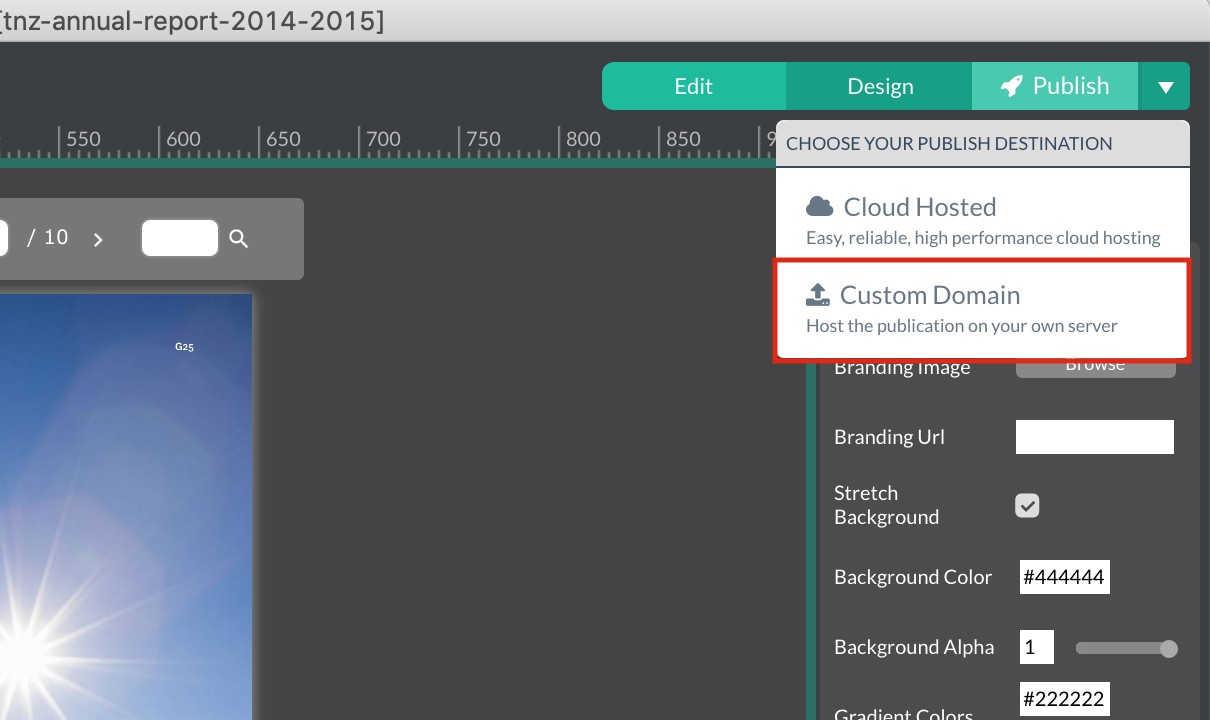
When your document is ready:
1) Click Publish in the top-right corner
2) Select Custom Domain (host the publication on your server)
3) Enter your Publication domain
4) Choose where the output files will be saved (or use the default workspace folder)
5) Select a file naming option if needed
6) Click Publish
FlowPaper will generate a final copy of your publication and save it to the selected folder on your computer.
Locate the generated publication files
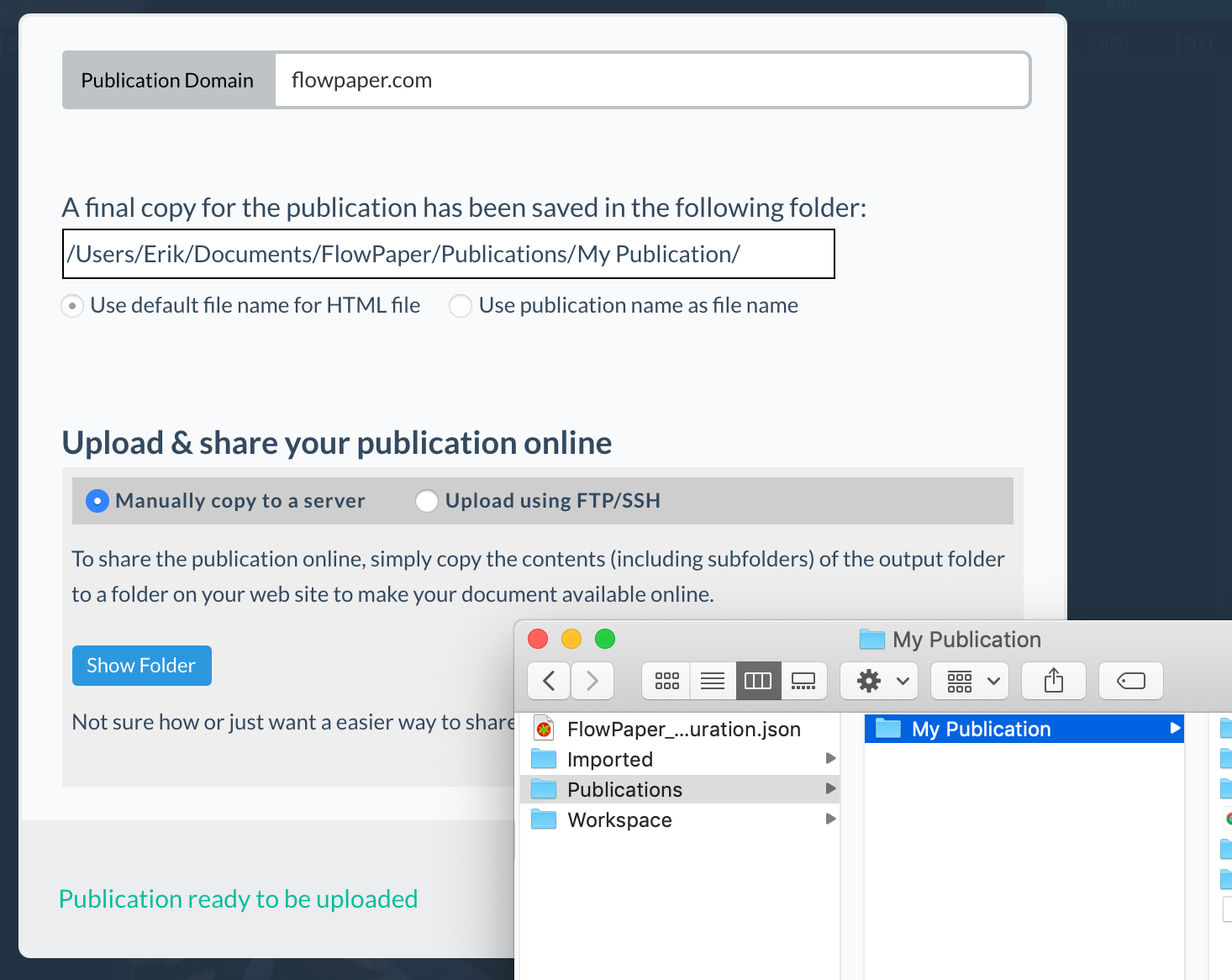
After publishing:
-
Click Show Folder to open the output location
-
Find the generated folder inside the Publications directory
This folder contains all files required to run your publication, including HTML, scripts, and assets.
Upload the publication to your server
To make your publication available online, you need to upload the generated files to your website.
You can do this using:
-
Manually copy to a server– upload files using your hosting provider’s file manager
-
FTP or SSH – transfer files using tools like FileZilla or the command line
Make sure to upload all files and subfolders from the output folder.
Access your publication
Once uploaded, your publication will be available at the corresponding URL on your domain.
For example: https://yourdomain.com/your-publication-folder/
You can also click View in browser to preview the publication locally before uploading.
Platform-specific guides
Embedding steps may vary depending on your platform. For detailed instructions, see: