Replace a Page in a PDF Without Losing Changes
Updating a PDF can be frustrating when you only need to change one or a few pages. In many tools, even a small update means rebuilding the entire document or re-adding links and other elements from scratch.
With FlowPaper, you can import your PDF into an interactive publication and replace individual pages without starting over. This allows you to update content while keeping everything you’ve already built.
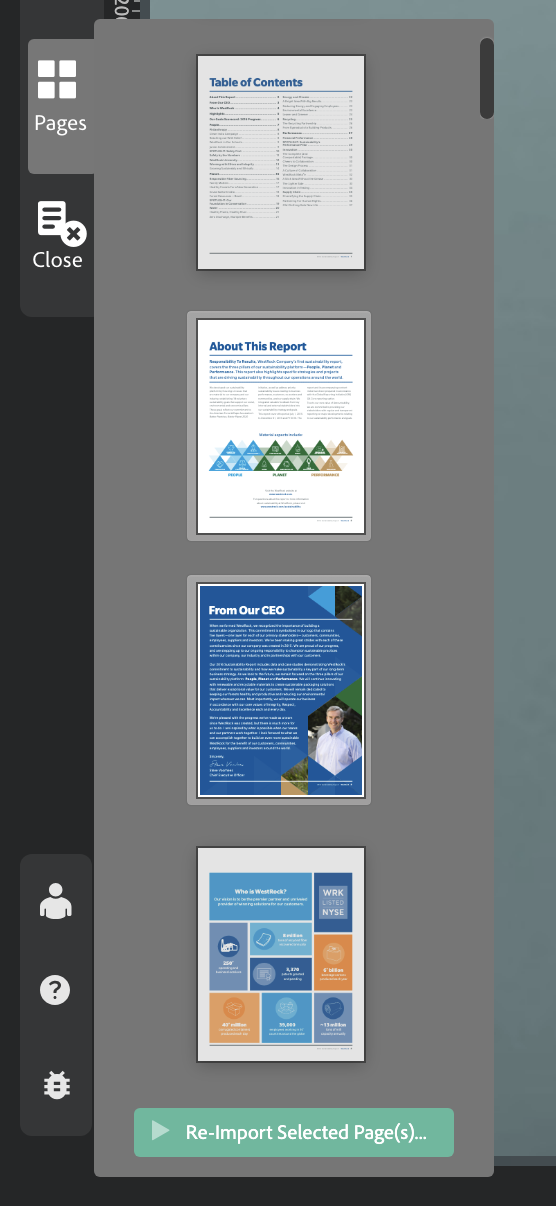
How to replace pages in a publication based on a PDF
1) Open your publication in the Desktop Publisher
2) Go to Pages
3) Select the page(s) you want to replace
4) Click Re-Import selected page(s)
5) Choose the file you want to import:
-
A PDF file with updated pages
-
An image to replace the page
FlowPaper will replace only the selected pages while keeping the rest of your publication unchanged. This also means you can update parts of a document or even combine content from different files by replacing specific pages.
Update pages without losing your work
When you replace a page in FlowPaper, everything you’ve already added to that page stays in place. Links, images, buttons, and other elements remain intact after the update.
This is especially useful when working with a flipbook that you’ve already started editing or publishing. You can fix or update specific pages without rebuilding the entire publication or losing previous work.
Related tutorials
Add new pages to an existing publication
How to Add More Content to a PDF Without Changing the Layout