How to Add Links to Your Flipbook
Links let you make your flipbook interactive by connecting pages, external websites, and actions. You can use them to create navigation, link to external resources, or make parts of your publication interactive.
In FlowPaper, you can add links as clickable areas, visible elements, or embed external content directly into your flipbook.
1) Open your flipbook in FlowPaper
- Open your existing publication in FlowPaper
- Or upload a new PDF to create a flipbook
2) Open the page in edit mode
- Go to the page where you want to add a link
- Double-click the top area of the page to enter edit mode
3) Add a link
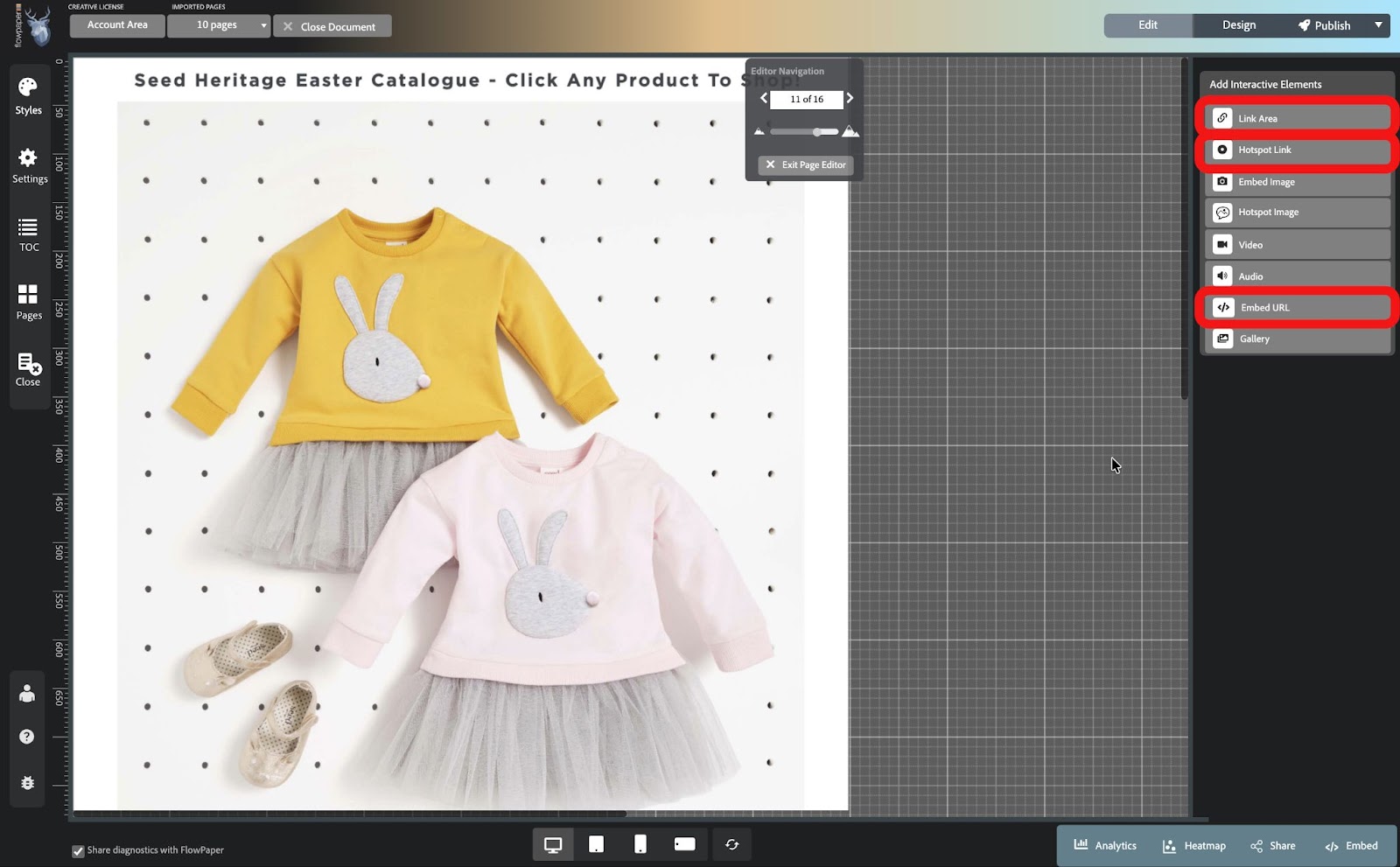
In the right-hand menu, choose:
- Link Area - makes part of the page clickable (invisible area)
- Hotspot Link - adds a visible clickable element (icon)
- Embed URL - displays external content inside your flipbook
A settings window will open.
4) Choose the link type
You can link to:
- A website (external URL)
- An email address
- A phone number
- A specific page in your flipbook
- A JavaScript action
5) Place the link on the page
- Click OK
- Draw the area where you want the link or element to appear
- Resize or reposition it as needed
6) Preview your flipbook
- Click Design in the top right corner
- Check how the link behaves in your publication
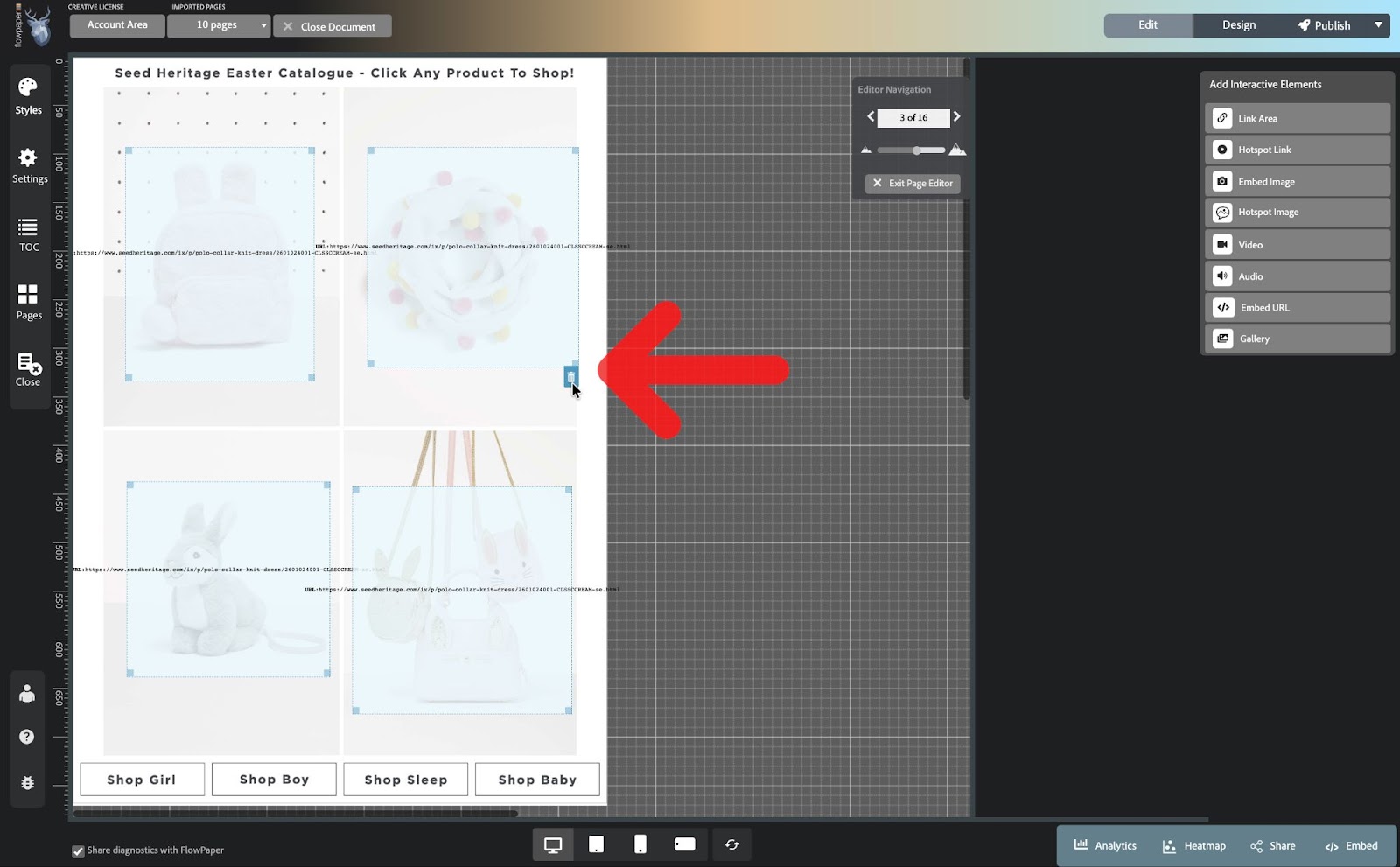
How to remove a link
- Double-click the top area of the page
- Hover over the link area or element
- Click the trash icon
Tips for using links
- Use invisible link areas to make existing design elements clickable
- Use hotspot links to highlight important actions or calls to action
- Link to specific pages to create navigation inside your flipbook
- Use embedded URLs to display forms, videos, or external content directly
Continue with more interactivity
Add more interactive elements to your flipbook: