How to Add Images to Your Interactive PDF
Images improve readability and engagement in your flipbook. With FlowPaper, you can add embedded images, hotspot images, and galleries in minutes.
1. Open Your Flipbook
- Open your existing publication in FlowPaper
- Or upload a new PDF to create a flipbook
2. Enter Edit Mode
- Go to the page where you want to add an image
- Double-click the top area of the page to enter edit mode
3. Add an Image
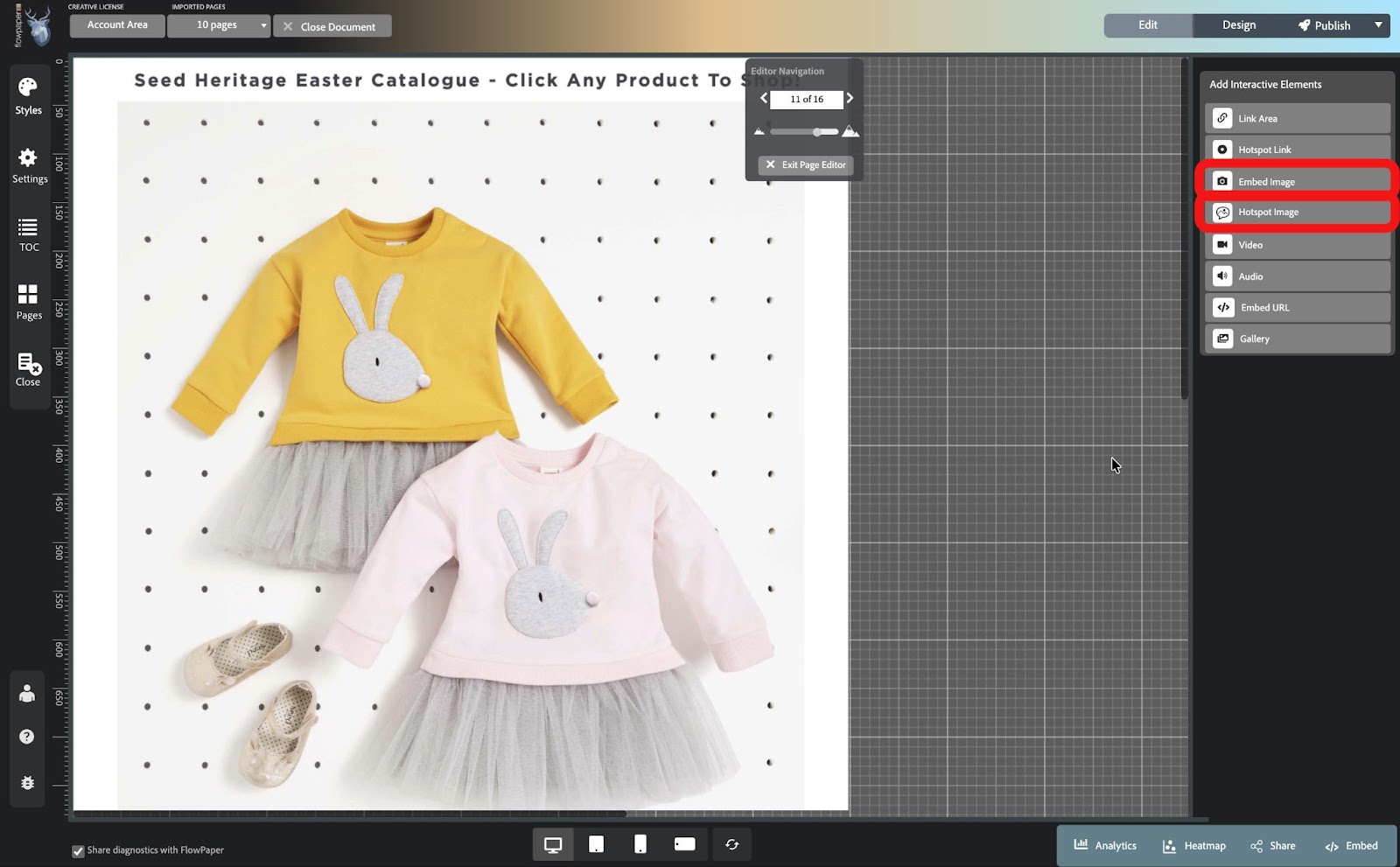
In the right-hand menu, choose:
- Embed Image — displays the image directly on the page
- Hotspot Image — shows the image only when the user clicks on a specific area
Then select an image from your computer and adjust the available settings if needed.
4. Place the Image
- Click OK
- Draw the area where you want the image to appear
- Resize or reposition it as needed
Add an Image Gallery
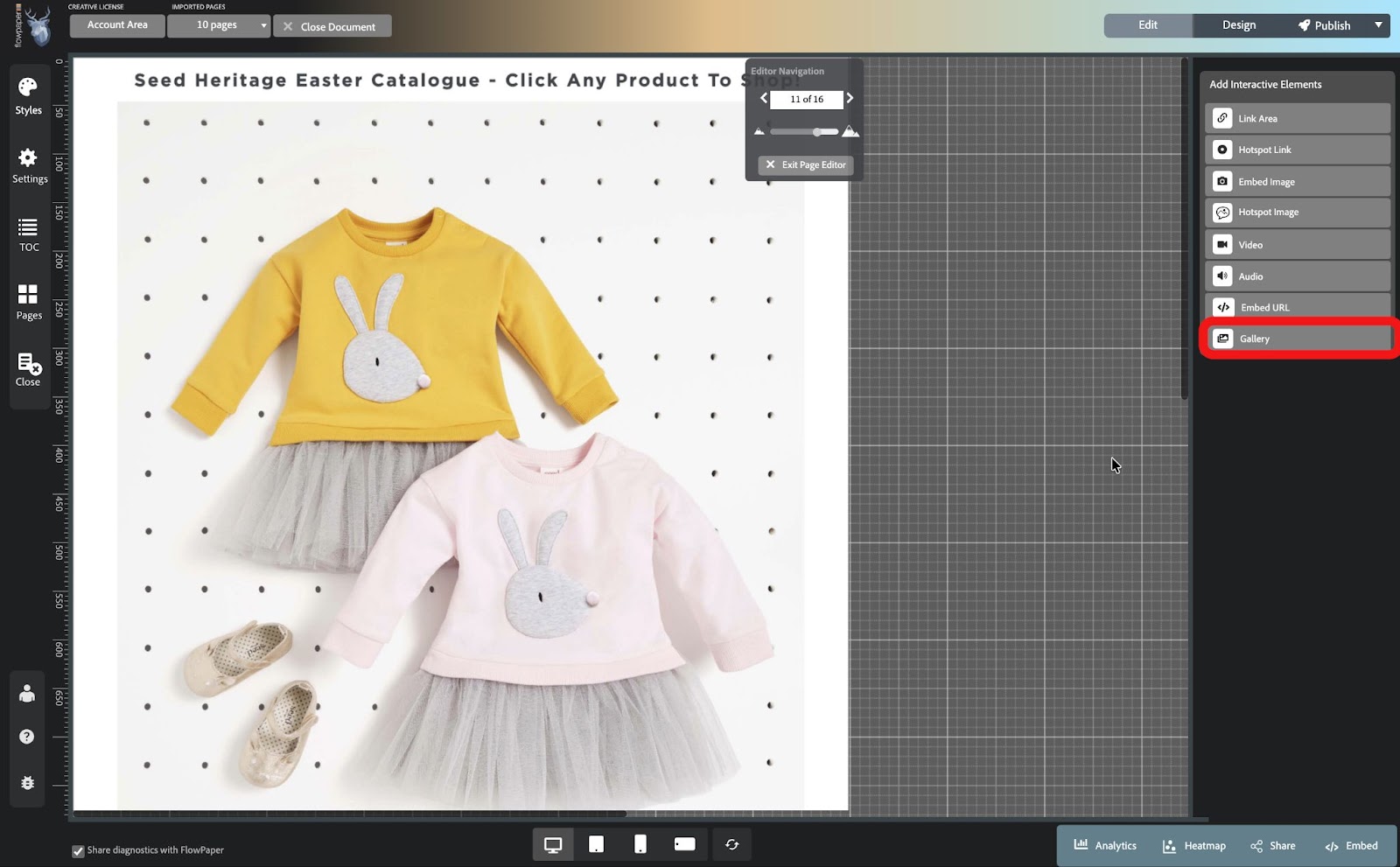
- In the right-hand menu, click Gallery
- Select and upload multiple images in the order you want them to appear
Remove an Image
- Double-click the top area of the page
- Hover over the link area or element
- Click the trash icon
Tips for Using Images
- Use clickable images to guide users to other pages or links
- Use popovers to show larger versions of images
- Use hotspot images to reveal images only when clicked
- Use galleries to present multiple images in one place
FAQ
Can I add multiple images at once?
Yes, use the Gallery feature to upload several images.
Are images mobile-friendly?
Yes, all images and galleries are responsive.
Can I remove or replace images later?
Yes, you can edit or delete images anytime in edit mode.