How to Turn a PDF into a Shareable Link Online
Sending a PDF as an attachment is simple, but it does not tell you much after the email has been sent. You usually cannot see whether the file was opened, how much of it was read, or whether the reader clicked any links inside it.
FlowPaper lets you publish the PDF as an online publication and share it as a link. You can also create separate trackable links for different customers, contacts, or campaigns, so each link has its own activity data.
Why use a trackable link instead of a regular PDF link?
A regular public link is useful when you only need one link for everyone.
A trackable link is better when you want to know how a specific recipient interacted with the document. For example, you can:
- Create a separate link for each customer or account
- See when a specific link was opened
- Track downloads and engagement for that link
- Set an expiry date for links that should not stay active forever
- Get an email reminder if a link has not been opened by a certain date
This is useful when you are sending proposals, brochures, catalogs, reports, price lists, or onboarding material and want to keep the follow-up tied to the document that was actually sent.
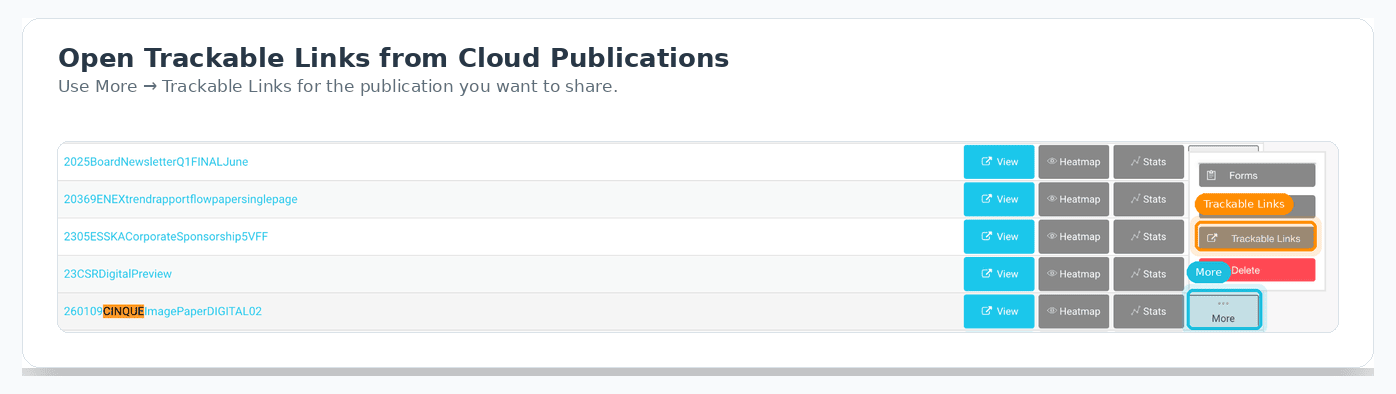
Step 1: Publish your PDF and open Trackable Links
From your FlowPaper account area:
- Open your publication in the Cloud Publications list
- Click More for that publication
- Select Trackable Links
This opens the trackable link manager for that publication.
Step 2: Create a unique trackable link
You may also see the trackable link option from the sharing tools in the publisher, depending on where you are working from.
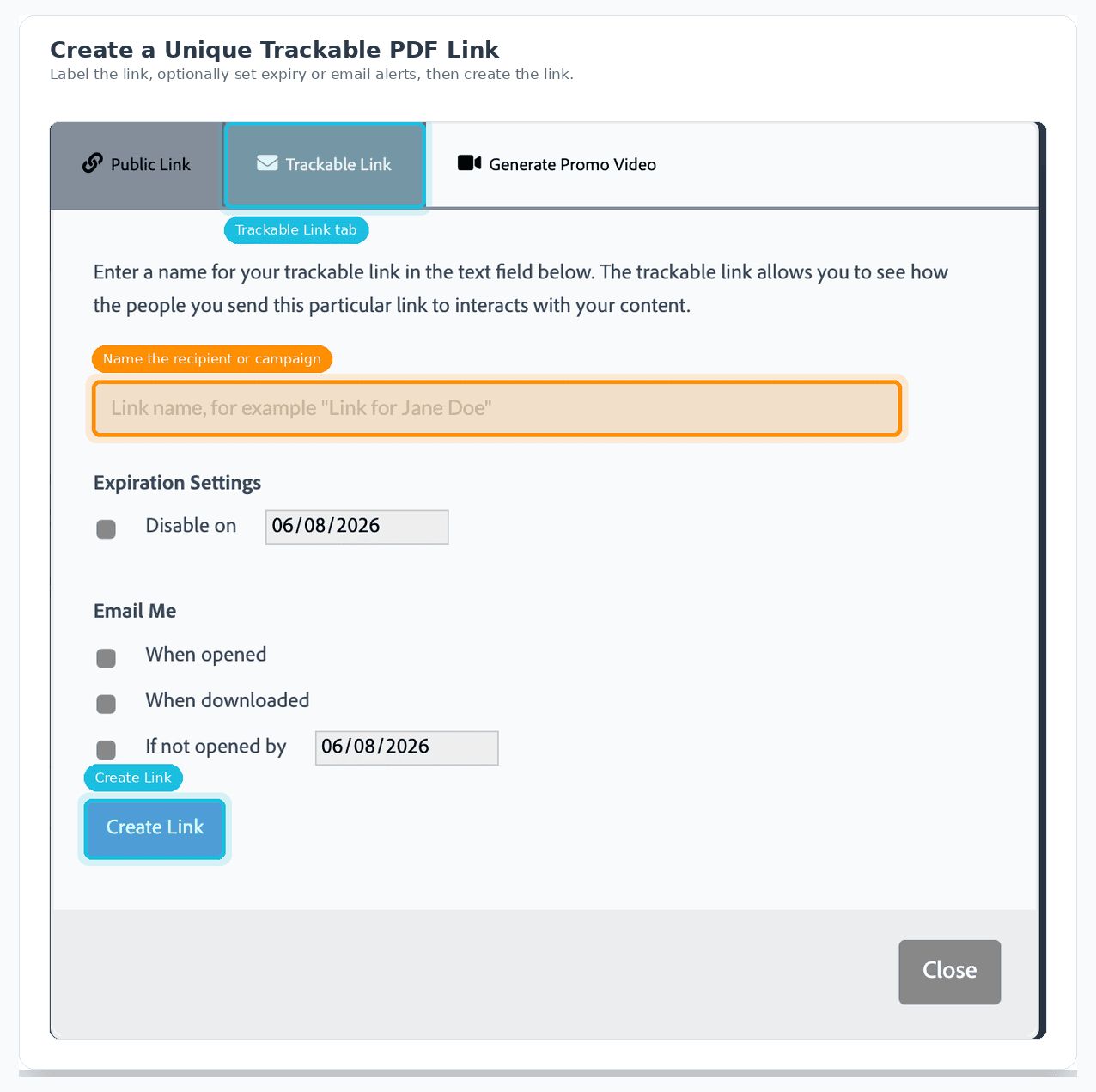
To create a link:
- Click the Share button in the lower-right corner of the desktop publisher
- Open the Trackable Link tab
- Enter a clear link name, such as the customer name, document name, or campaign
- Optional: enable Disable on if the link should expire on a certain date
- Optional: enable email alerts:
- When opened
- When downloaded
- If not opened by a specific date
- Click Create Link
FlowPaper then creates a unique URL that you can copy and send.
Step 3: Send the link
Copy the generated link and send it in the same way you would send any other document link. You can use it in an email, CRM message, newsletter, chat message, or internal system.
For cleaner tracking, create one link per recipient or account instead of sending the same trackable link to everyone. That way, the stats for each link stay separate.
Step 4: Track engagement for each individual link
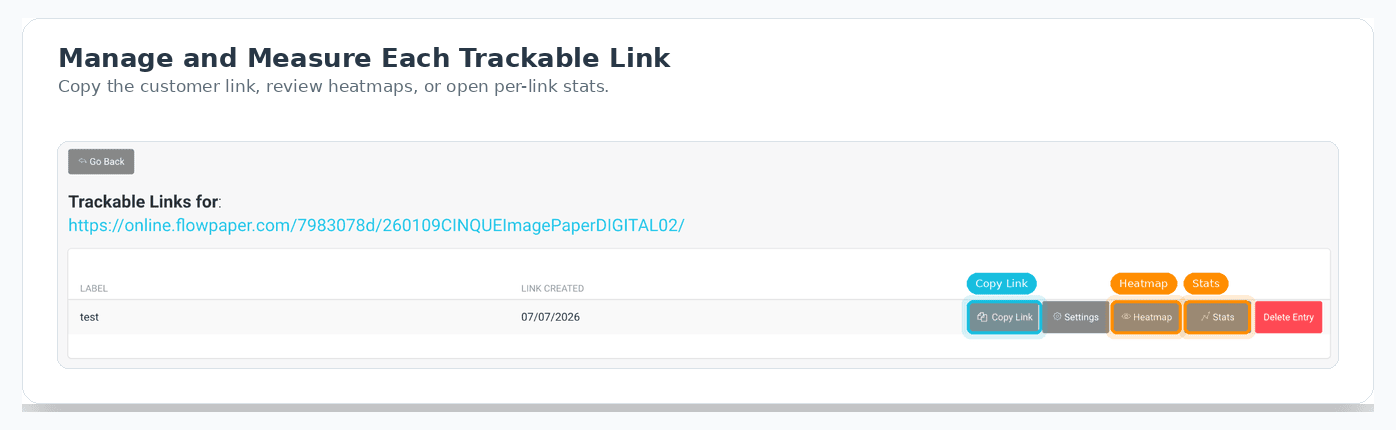
In the Cloud Publications section of the account area, each trackable link has its own actions, including:
- Copy Link
- Settings
- Heatmap
- Stats
Open Stats to see activity for that specific link.
Open Heatmap if you want to see which pages received the most attention for that link.
Step 5: Review publication analytics in Cloud Publications
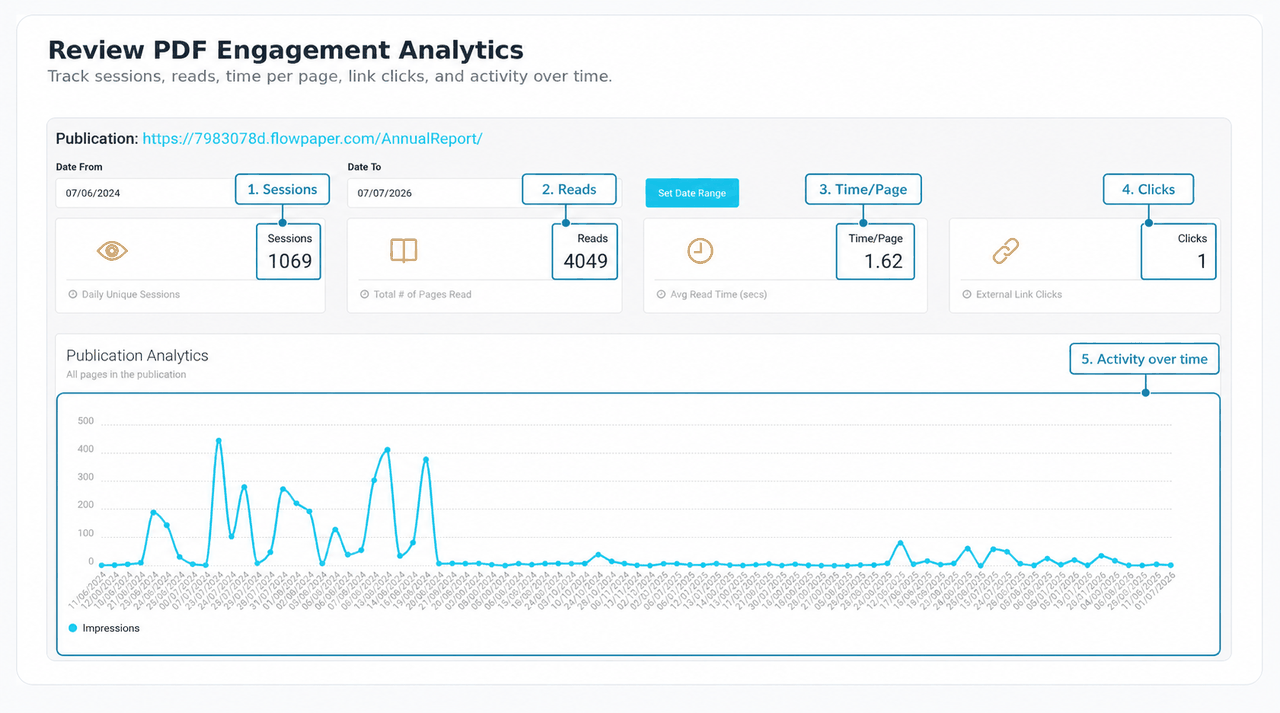
Click Stats to open analytics for the publication from Cloud Publications.
The analytics dashboard can show:
- Sessions — unique visits
- Reads — total pages read
- Time/Page — average read time per page
- Clicks — external link clicks
- Activity over time
These publication-level stats are useful when you want to see how the PDF performs overall, while the trackable links show activity for individual links.
Example workflow
A typical workflow could look like this:
- Publish a brochure, proposal, report, or catalog in FlowPaper
- Create a separate trackable link for each recipient or account
- Send the correct link to each person
- Check whether the link was opened or downloaded
- Use the stats or heatmap before deciding how to follow up
This keeps the document and the reader activity connected, instead of leaving the PDF as a file attachment with no useful feedback.
Naming tips for cleaner tracking
Use a naming format that matches how your team already refers to customers, documents, or campaigns.
For example:
[Account] - [Document] - [Contact] - [Month]
Example:
Acme Furniture - Product Catalog - Sarah - Jul 2026
If you use the same format each time, the trackable links list is easier to scan later.
Frequently asked questions
Can I share one public link and still track individuals?
A public link can show overall publication analytics, but it will not separate activity by recipient. For recipient-level tracking, create separate trackable links.
Can I stop access after a deadline?
Yes. Use the Disable on setting when creating or editing the trackable link.
Where do I see clicks and read metrics?
Use Stats inside the Trackable Links view for per-link data. Use the publication analytics dashboard in Cloud Publications for the overall publication stats.
Read next
PDF Analytics and Reader Tracking
How to track page views in PDF documents for page flip publications using Google Analytics