How to Add a Video to Your Flipbook
Sometimes a video explains things better than a full page of text. By adding video to your flipbook or interactive PDF, you can guide your readers, showcase products, or add extra context exactly where it is needed.
In FlowPaper, you can easily embed videos from YouTube, Vimeo, or Wistia, or upload your own file to create a more engaging digital publication.
1) Open your flipbook in FlowPaper
- Open your existing publication in FlowPaper
- Or upload a new PDF to create a flipbook
2) Open the page in edit mode
- Go to the page where you want to add the video
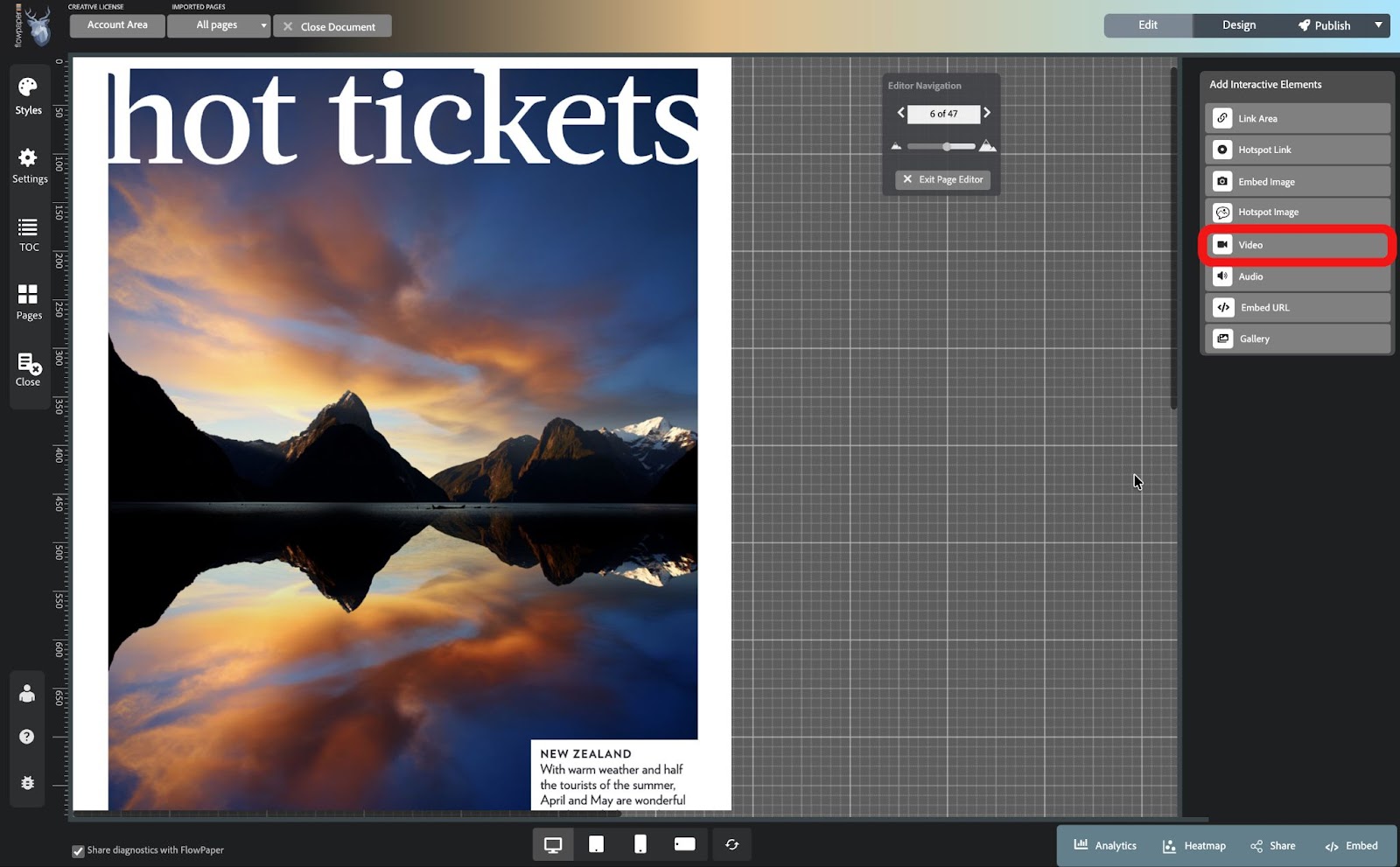
- Double-click the top area of the page to enter edit mode
3) Add a video
- In the right-hand menu, click Video to open the settings window
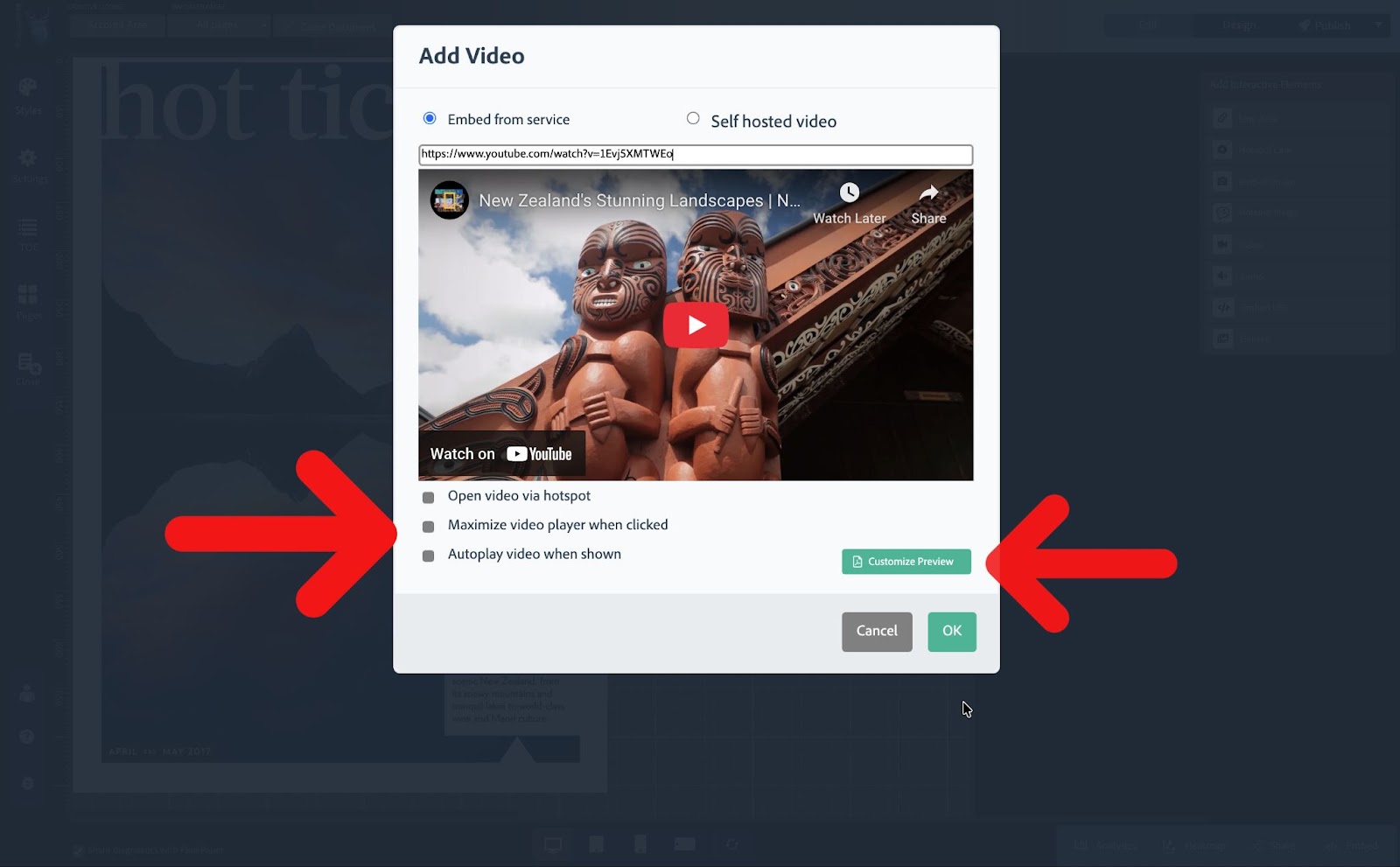
4) Add your video
- Paste a video link from YouTube, Vimeo, or Wistia
- Or upload a self-hosted video file
5) Adjust settings and preview (optional)
- Adjust playback settings if needed
- To change the preview image, click Customize Preview and upload your own image
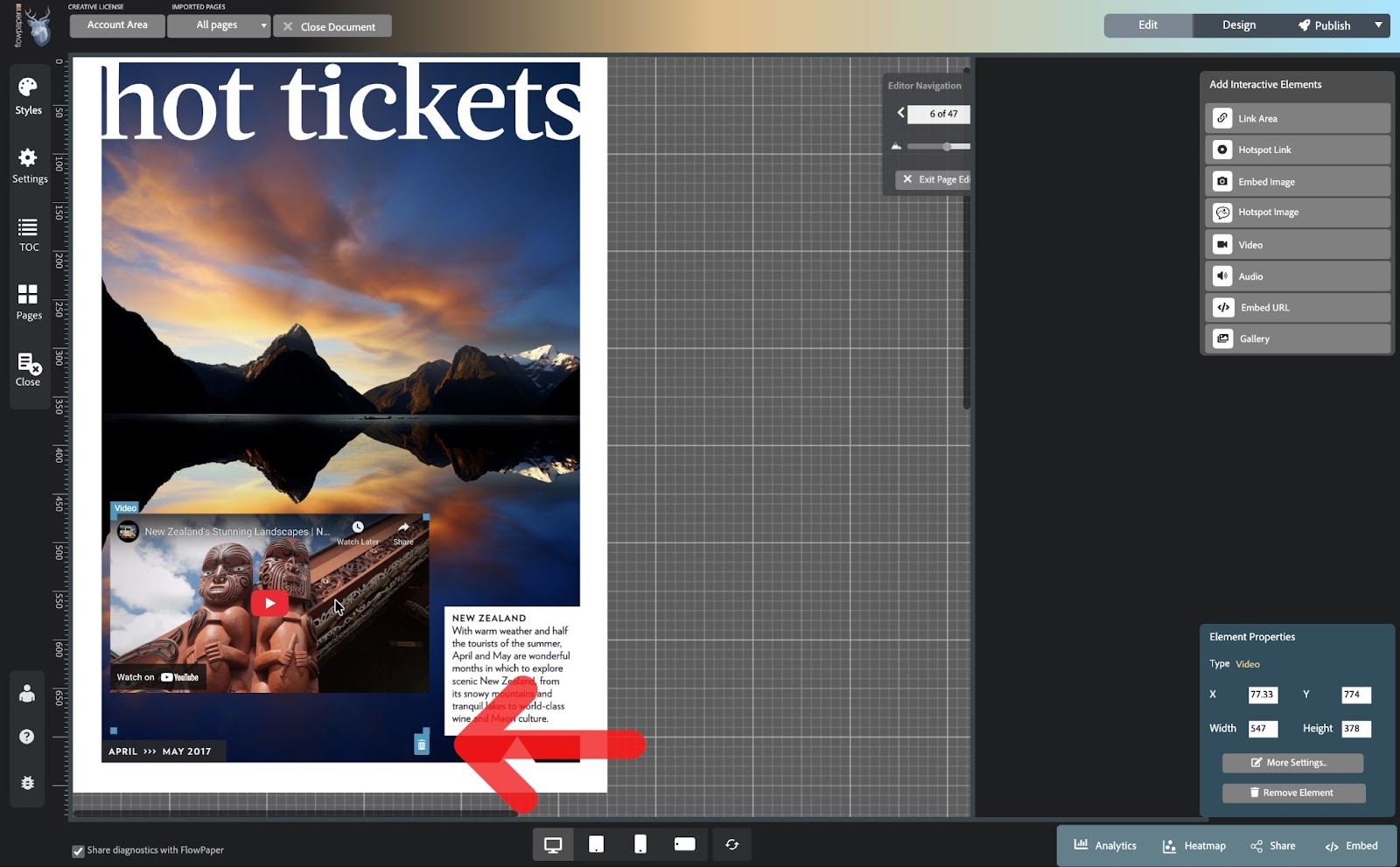
6) Place the video on the page
- Click OK
- Draw the area where you want the video to appear
- Resize or reposition it as needed
7) Preview your flipbook
- Click Design in the top right corner
- Check how the video looks and behaves in your publication
How to remove a video
- Double-click the top area of the page
- Hover over the link area or element
- Click the trash icon
Tips for better results
- Use a custom preview image to make your video more noticeable
- Keep videos short and relevant to the page content
- Avoid autoplay for longer videos, especially on mobile devices, as it may not work as expected and can feel intrusive
Continue with more interactivity
Add more interactive elements to your flipbook: