How to Customize a PDF and Make It Interactive Online
PDFs often look too static and don’t match your brand.
With FlowPaper, you can transform your PDF into an interactive, visually polished flipbook without editing the original file.
Instead of redesigning your document, you simply upload it, choose a template, and customize its appearance and behavior.
Video tutorial
Choose a template and visual style
Start by uploading your PDF and selecting a template. Templates define how your publication looks and what features are available.
The most commonly used option is the Zine template, which lets you quickly create a flipbook-style experience with features like intro animations and flexible layout styling.
Customize the appearance of your flipbook
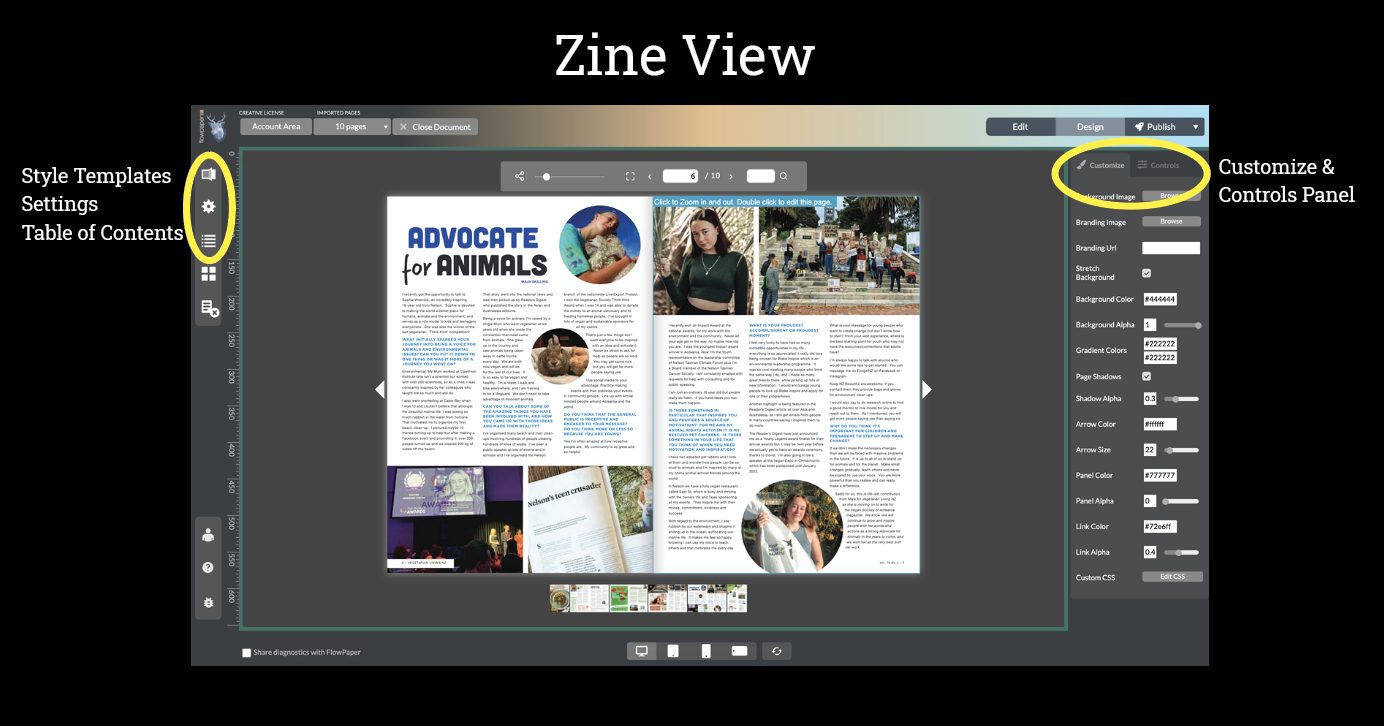
Once your document opens in the editor, go to the Customize panel on the right. This is where you control how your flipbook looks and feels.
From here, you can:
- Adjust background and intro animation
- Change colors, shadows, and visual style
- Customize branding (logo, links, interface colors)
- Control navigation elements like arrows and panels
- Fine-tune behavior such as transitions and animations
Instead of editing your PDF, you’re styling the viewer around it.
Control user experience and features
Next to Customize, you’ll find the Controls tab. Here you decide what your readers can see and use. You can adjust these settings for desktop, tablet, and mobile separately.
Switch styles and layouts
On the left-hand side, the Styles panel lets you quickly change how your publication is presented.
For example, you can switch to layouts like a hardcover book with realistic page turning.
This allows you to experiment with different visual styles without changing your content.
Add interactivity to your PDF
To add interactive elements, enter Edit mode:
- Click Edit (top right), or
- Double-click the top area of a page
In the editor, you’ll see a panel with interactive elements you can add, such as links, media, and other components.
Advanced customization with the Elements template
If you need more control, the Elements template allows you to edit and animate individual elements inside your PDF.
This includes:
- Animating text and headings
- Editing content directly
- Adding advanced interactive features
Learn more: How to animate text and elements
Continue customizing your publication
You can take your publication further by:
Creating reusable style templates
Create a PDF experience that looks professional, interactive, and ready to share online.