How to Create Social Media Stories from Your PDF
Sharing PDF content on social media can be time-consuming, especially when you need separate visuals for each platform.
With FlowPaper, you can reuse PDF content and turn it into a clean, mobile-friendly web page you can share as a link.
Where to use this
This approach works well when you want to:
-
Share highlights from a larger PDF
-
Promote reports, brochures, or articles
-
Create mobile-friendly content for social media
-
Guide users to your full publication
For example, you can:
-
Post a preview on Instagram Stories and attach the link
-
Share the page on LinkedIn as an article-style post
-
Use it in campaigns to drive traffic to your full PDF
Step-by-step guide: Create a shareable page from your PDF
1) Import your PDF
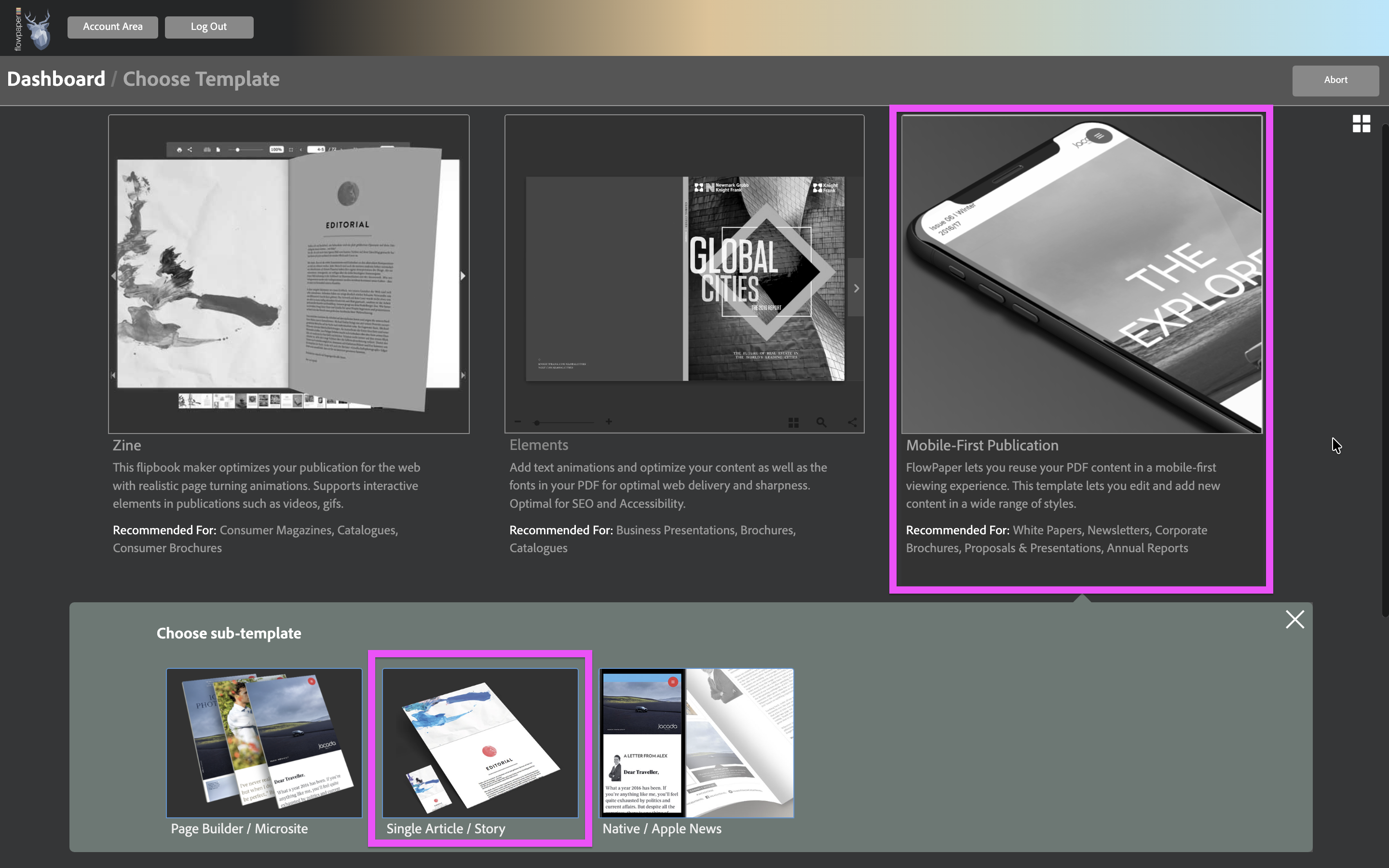
Upload your PDF to the dashboard and select Mobile First Publication, then choose the Single Article / Story subtemplate.
2) Build your content layout
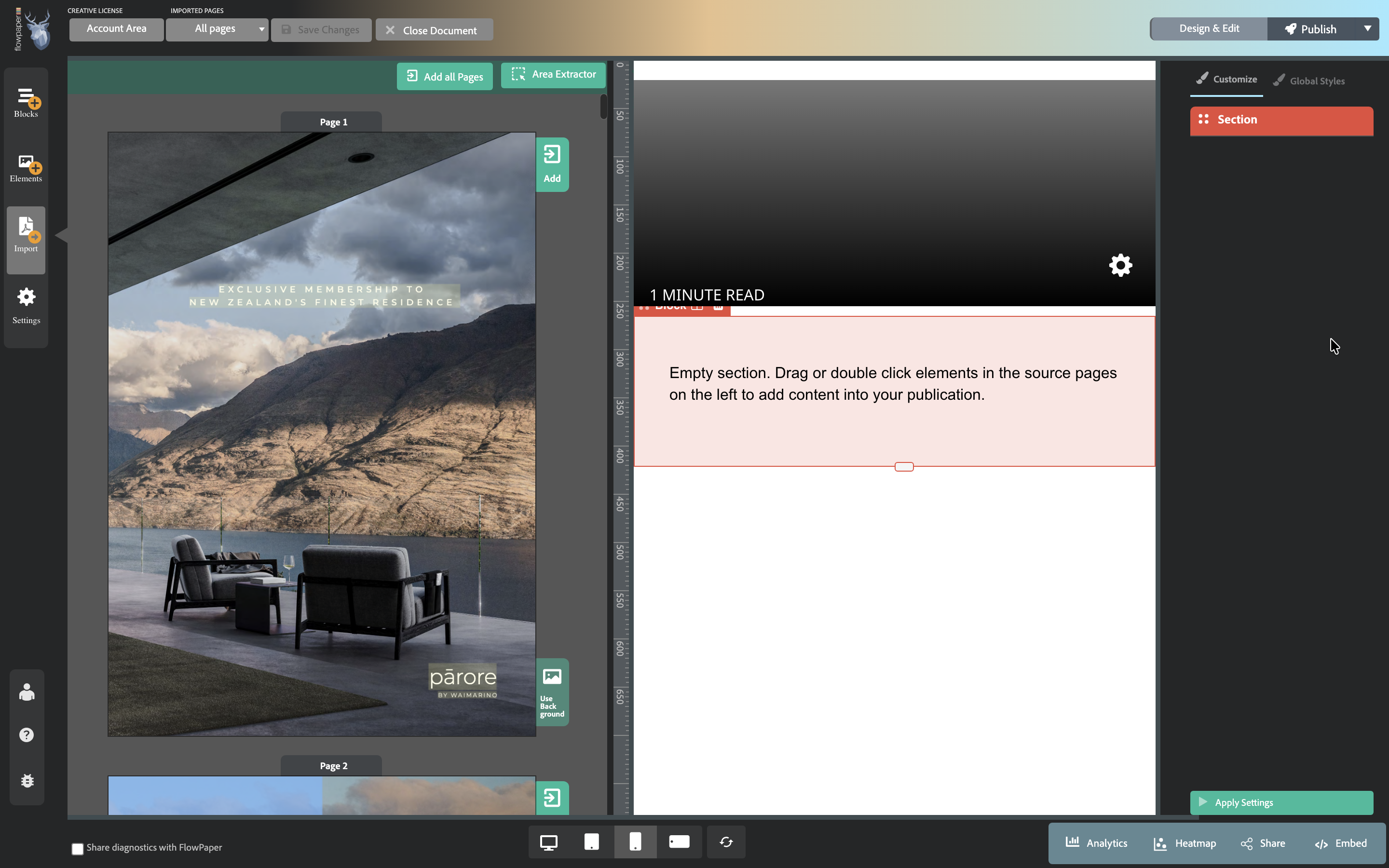
The editor is split into two areas:
-
your original PDF pages on the left
-
your new page layout on the right
To create your page, simply drag elements from the PDF into the layout, or double-click them to add.
3) Arrange and refine your content
Once elements are added, you can restructure your page by dragging blocks into position.
Each block can be edited through the settings panel — here you can adjust headings, swap images, or add a footer linking back to your full publication.
This allows you to turn raw PDF content into a clear, focused story.
4) Publish your page
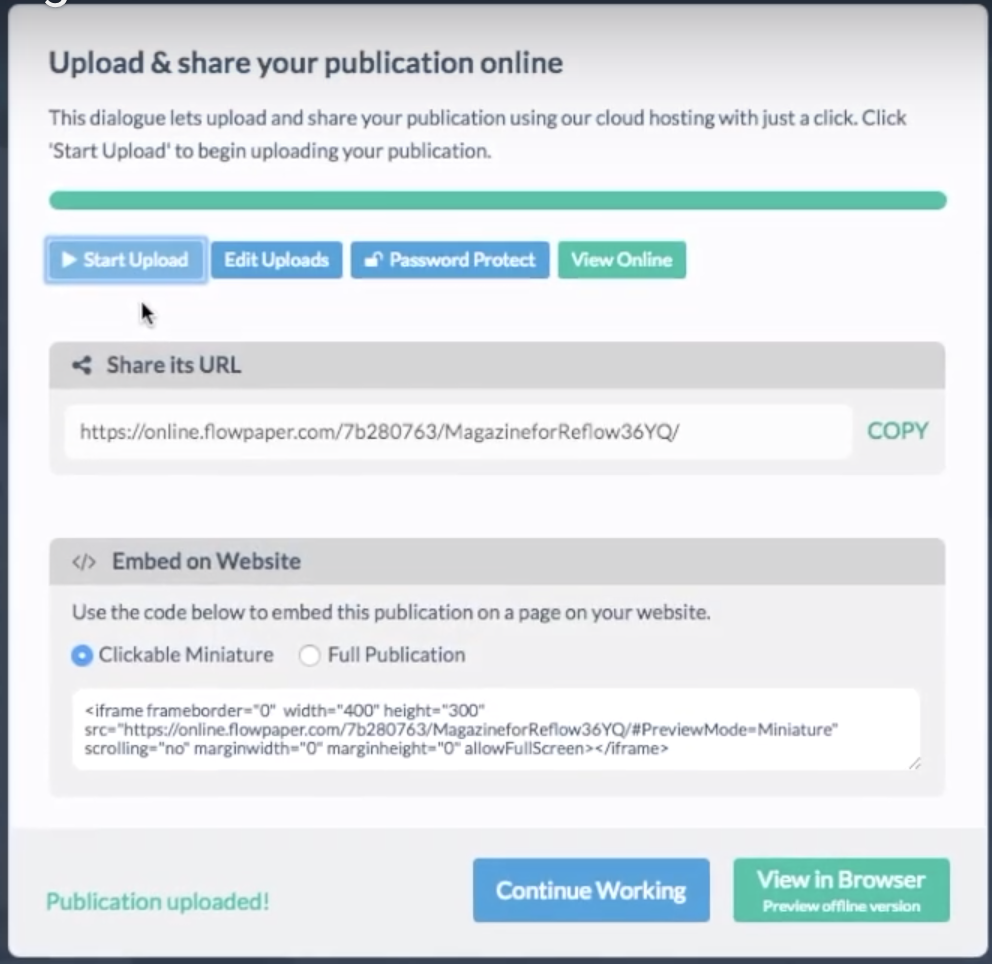
When your page is ready, click Publish in the top right corner. You can choose between:
-
Cloud hosting
-
Self-hosting
After publishing, copy the generated URL — this is the link you will share.
4) Share your content

You can now use your page across different platforms. For example:
-
Take a screenshot of your page and post it to Instagram Stories, then attach the link
-
Share the link directly on LinkedIn or other platforms
-
Use it in newsletters or campaigns
Next steps
Add animations to make your content more dynamic